Export Bookmarks from a Specific Folder with Refloo
Easily export a specific list of bookmarks with Refloo.
Exporting Bookmarks from a Specific Folder with Refloo
1. Why Export Only Some Bookmarks?
Chrome's built-in bookmark export feature is handy, but it only exports all your bookmarks at once. This isn't ideal for users who only need to export a selection of bookmarks. For example, you might want to share the bookmarks from a specific folder, not your entire library.
Now, with the Refloo extension, you can quickly export bookmarks from a specific directory and save them in the standard HTML bookmark format, which can then be directly imported into other browsers.
2. Export Steps
2.1 Install Refloo
Install Refloo from the Chrome Web Store. If you already have it installed, you can skip this step.
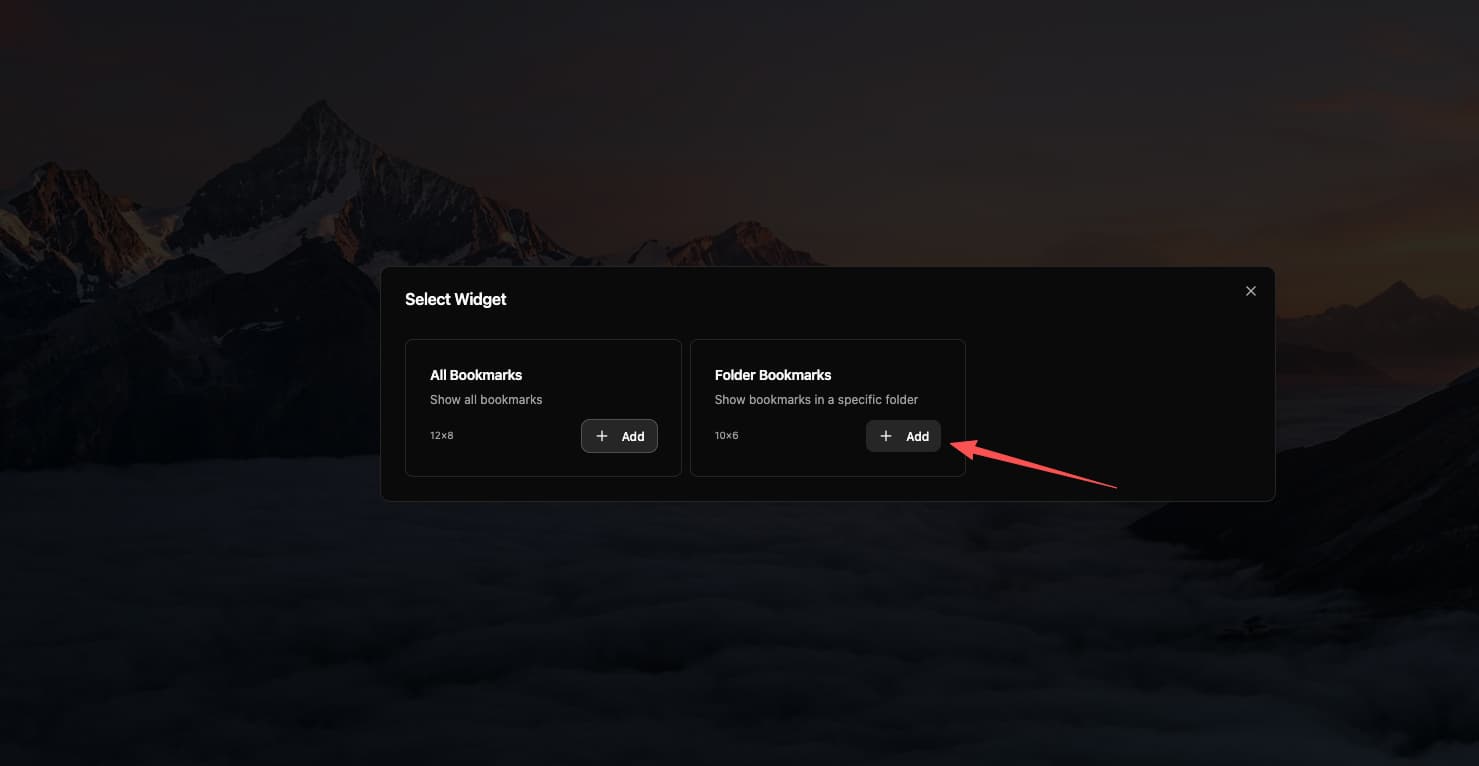
After installing Refloo, open a new tab, right-click on an empty area of the screen, select "Add Widget", and from the list that appears, choose "Folder Bookmarks" and click "Add".
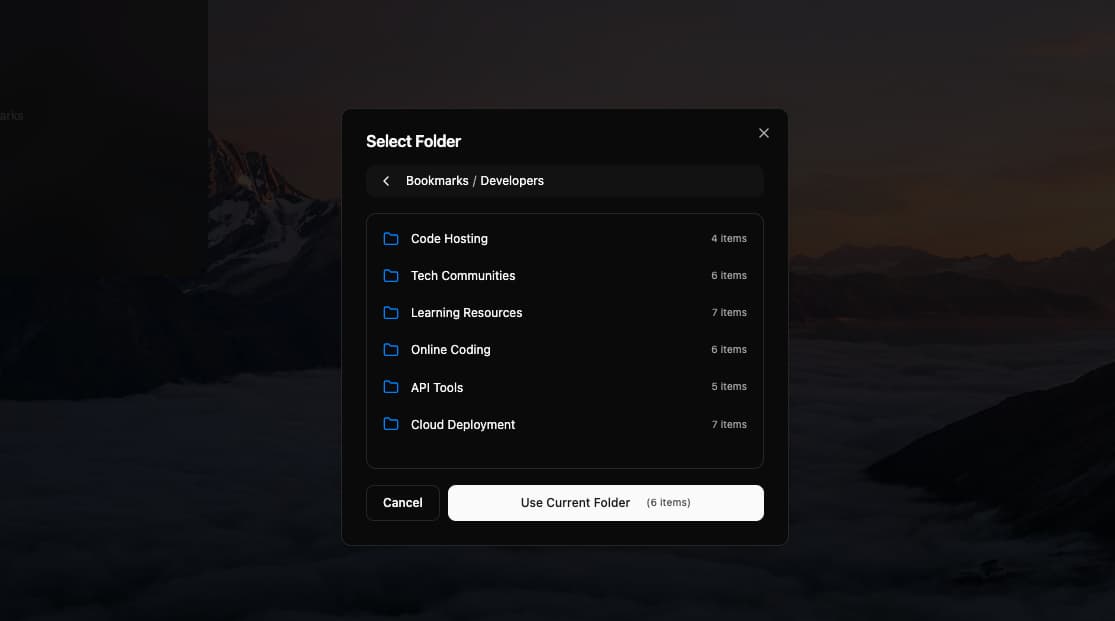
By default, the added "Folder Bookmarks" widget won't contain any bookmarks. You need to specify the "Bookmarks Folder" to display. Click "Select Folder" and choose the folder you want to export.
2.2 Start Exporting
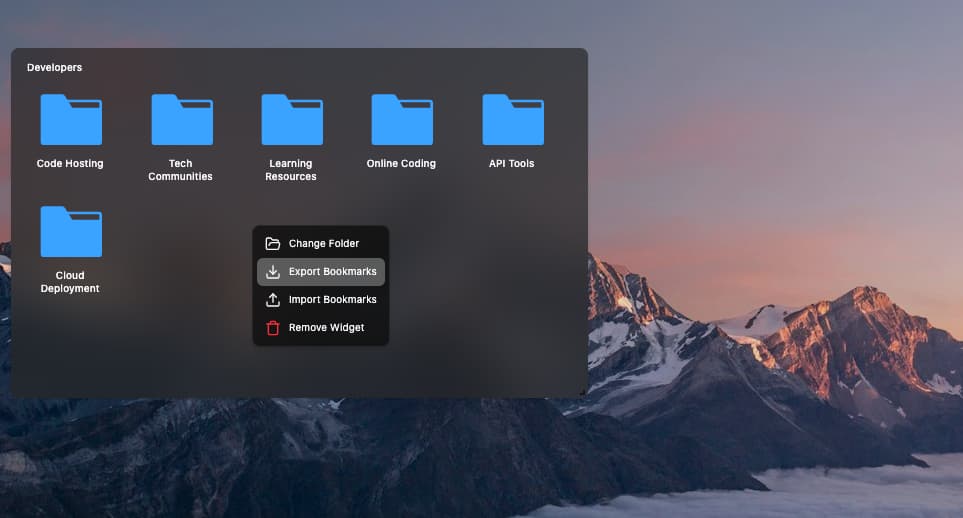
Right-click on the "Folder Bookmarks Widget" for the specified folder and select "Export Bookmarks". This will export all bookmarks in the current directory to an HTML file.
Advantages of Exporting
- High Compatibility: HTML-formatted bookmark files are recognized by almost all modern browsers.
- High Flexibility: You can selectively export specific folders instead of your entire bookmark library.
- Easy to Share: The exported bookmark file can be easily shared with friends or colleagues.
Conclusion
Refloo offers a simple and efficient way to manage and share your bookmarks. Whether for cross-browser use or for sharing specific bookmark content with others, Refloo is a trustworthy tool.